
Versus Desktop
Tournament Manager
CEDARBOOK systems
Versus Desktop is a desktop app for Mac and Windows. Please open this page on your computer.
Download for Mac directly (.dmg) Looking for the Mac version? (Mac App Store) Looking for the Windows version?
Free · In-app purchase
From preparation to match day to the final results.
Full-scale tournament management
on a single computer.
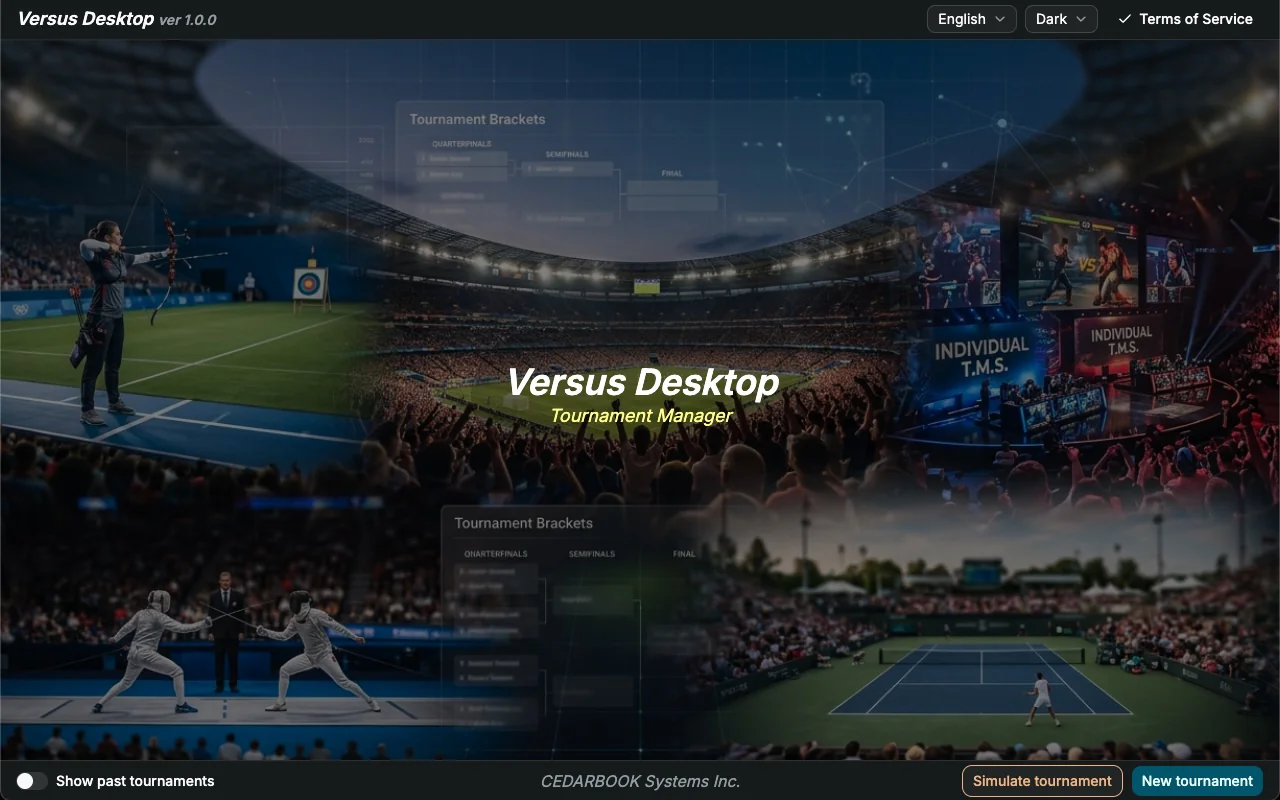
Versus Desktop is the full-featured edition of our smartphone app "Versus Pocket". It handles everything from creating brackets and league tables to running the event and archiving past tournaments. Learn more
-
Works offline
Run your event even at venues without an internet connection.
-
No account needed
Your data is kept locally on your computer, so there is nothing to sign up for.
-
Simulate tournament
A guided tour that also lets you try out all kinds of tournament patterns before the real event.
-
English / Japanese
Switch the display language, and switch between light and dark mode.
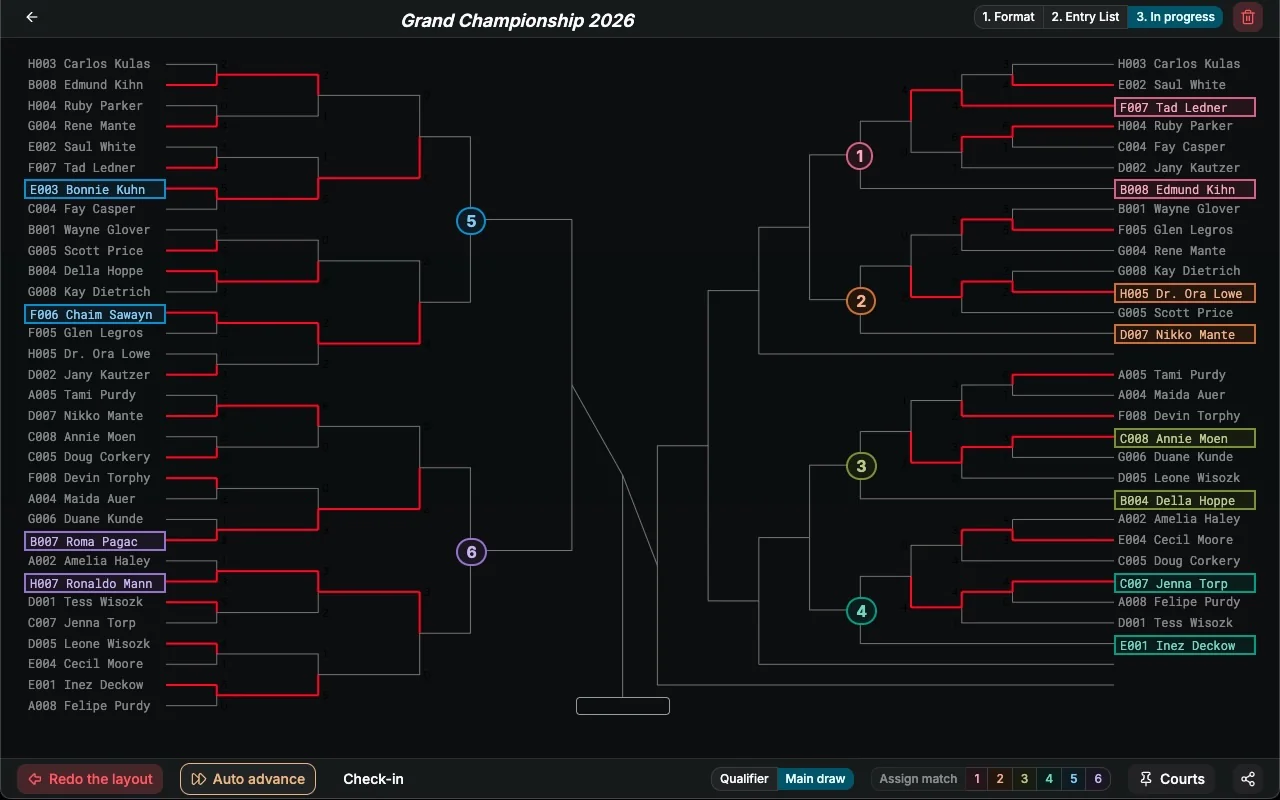
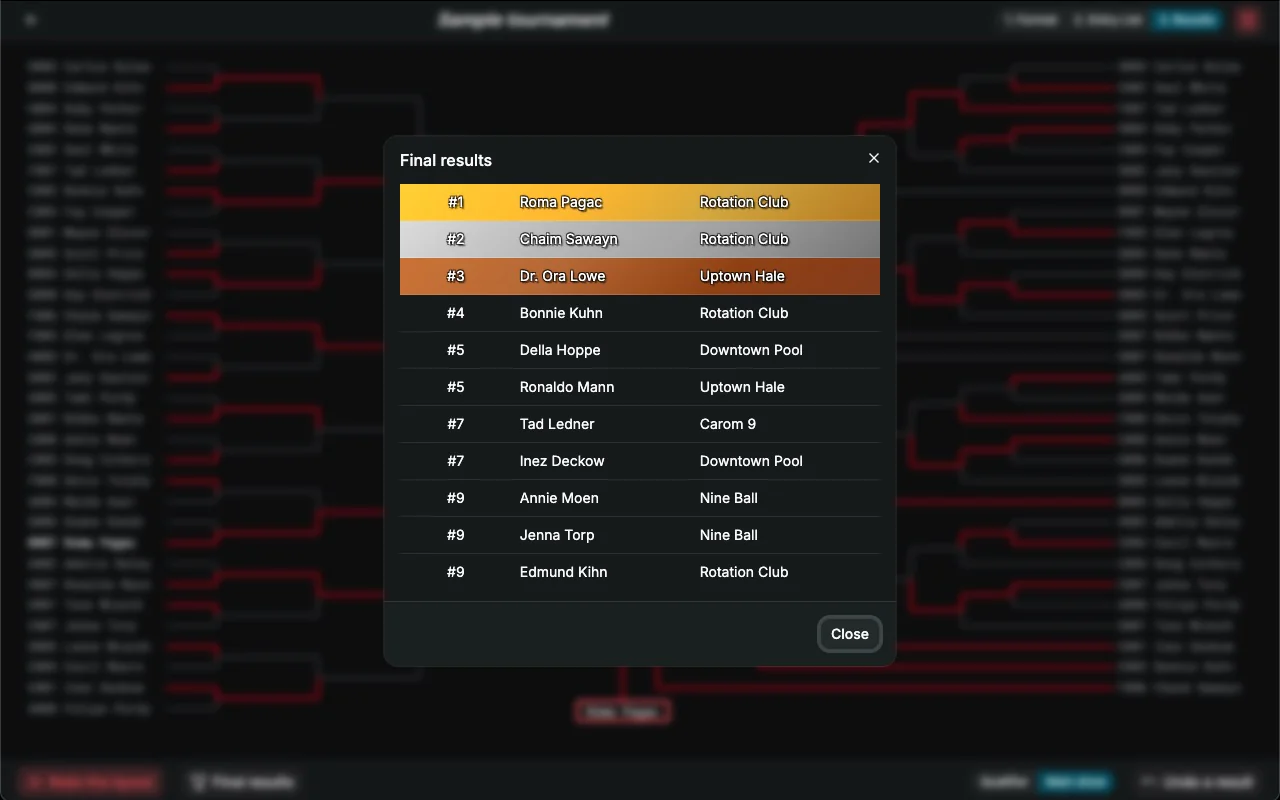
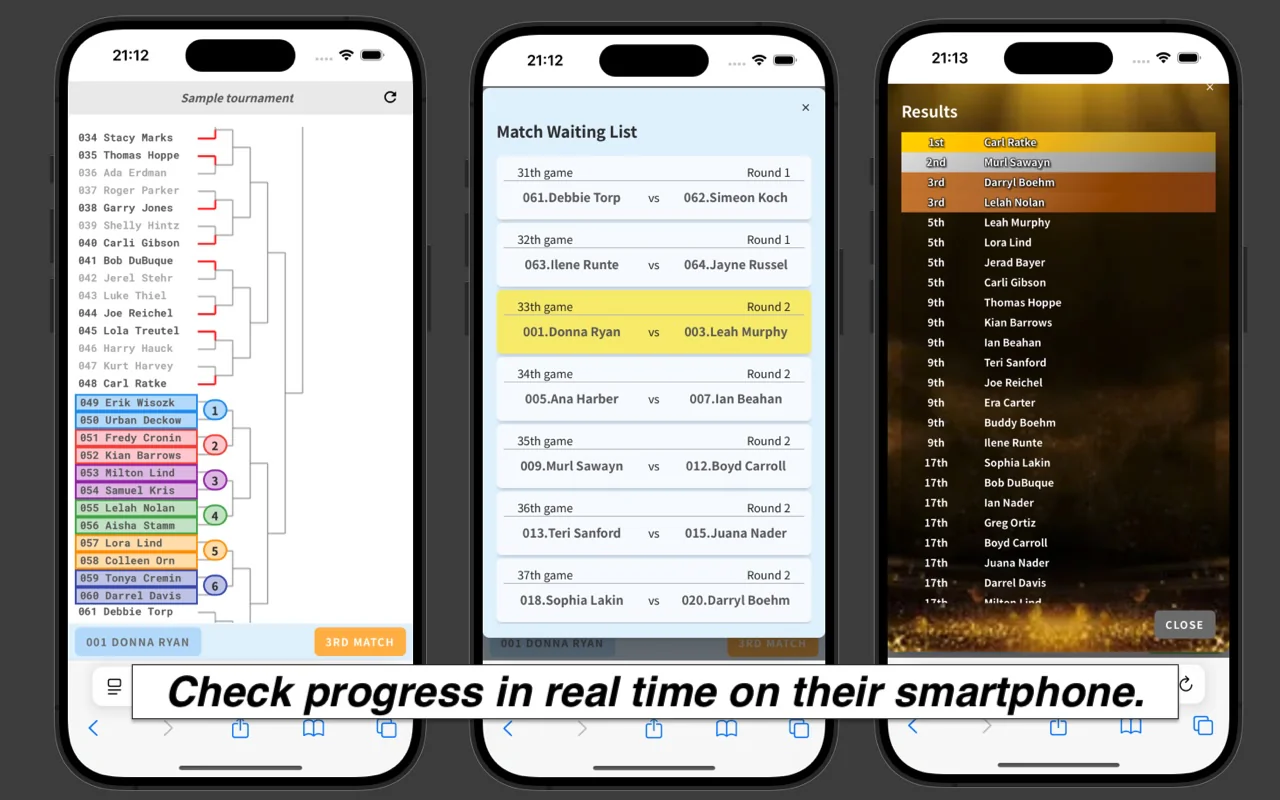
Key features
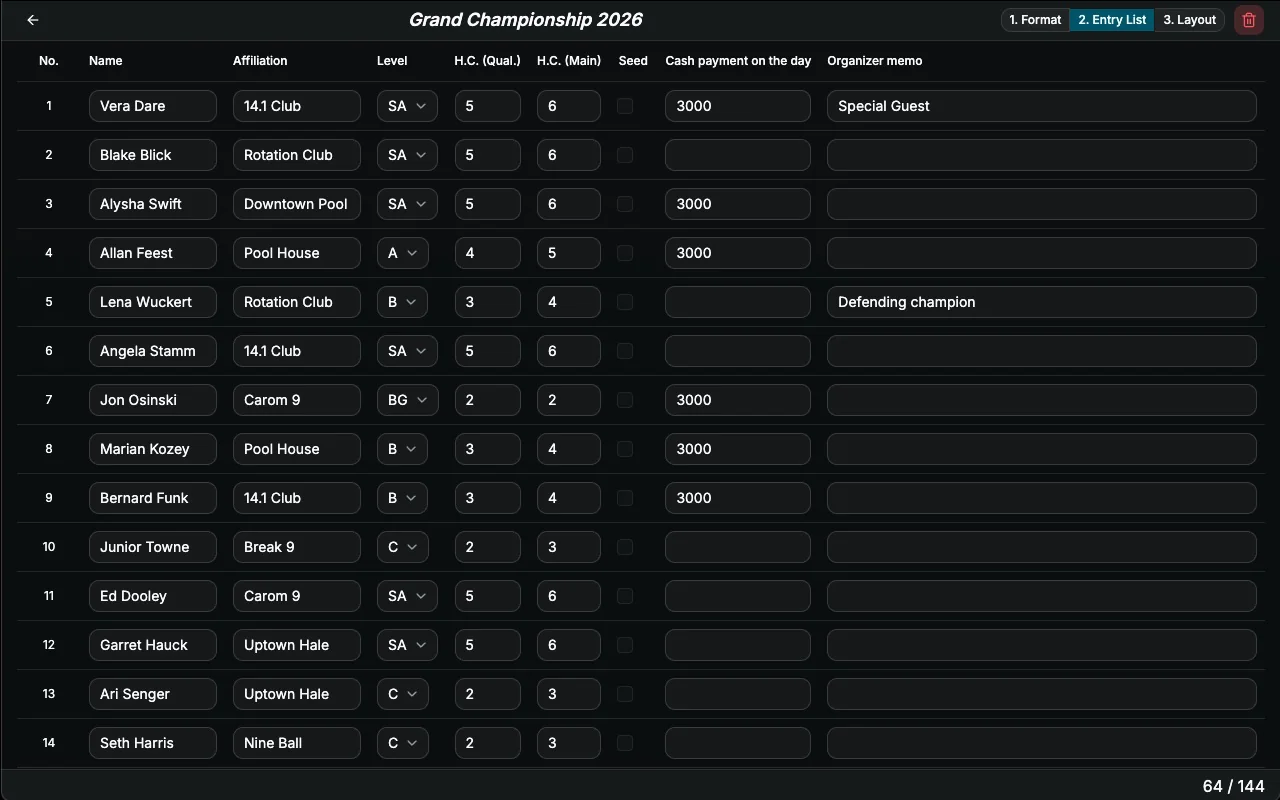
- Upload entrants from a CSV file
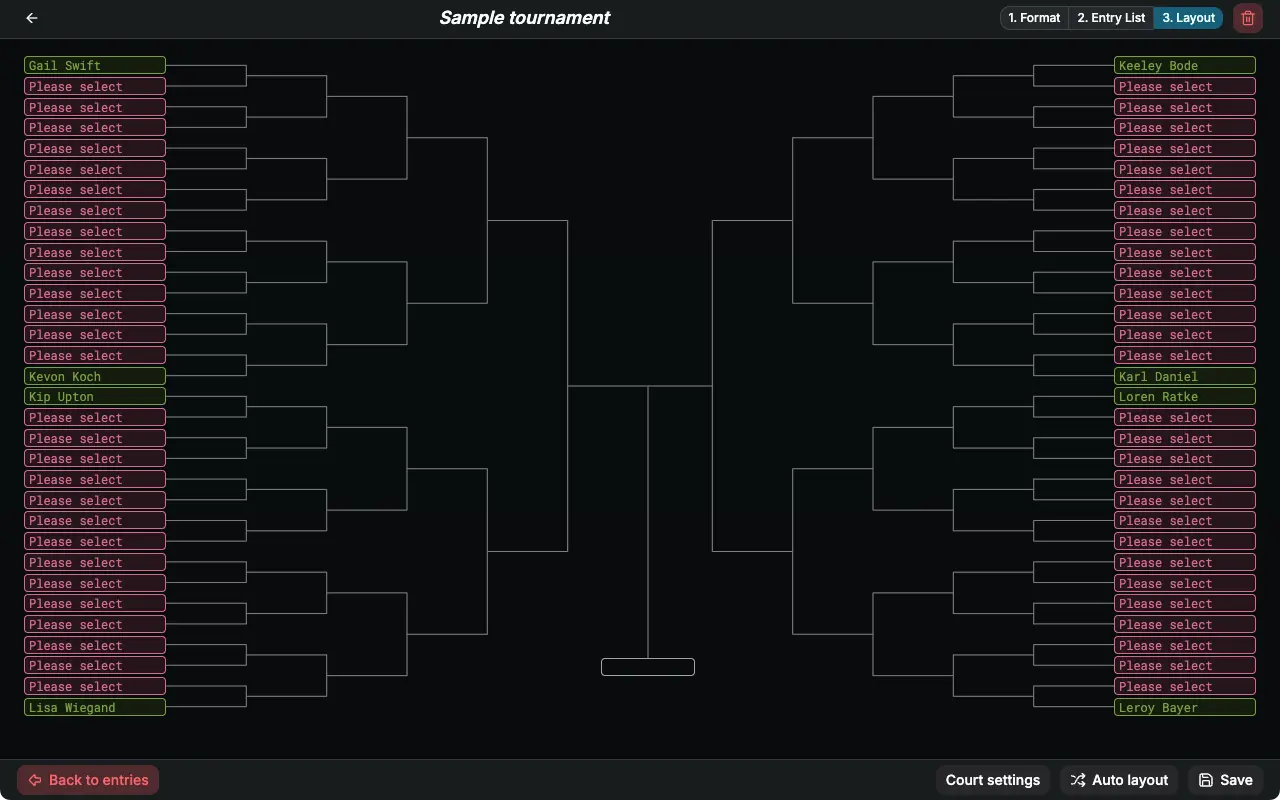
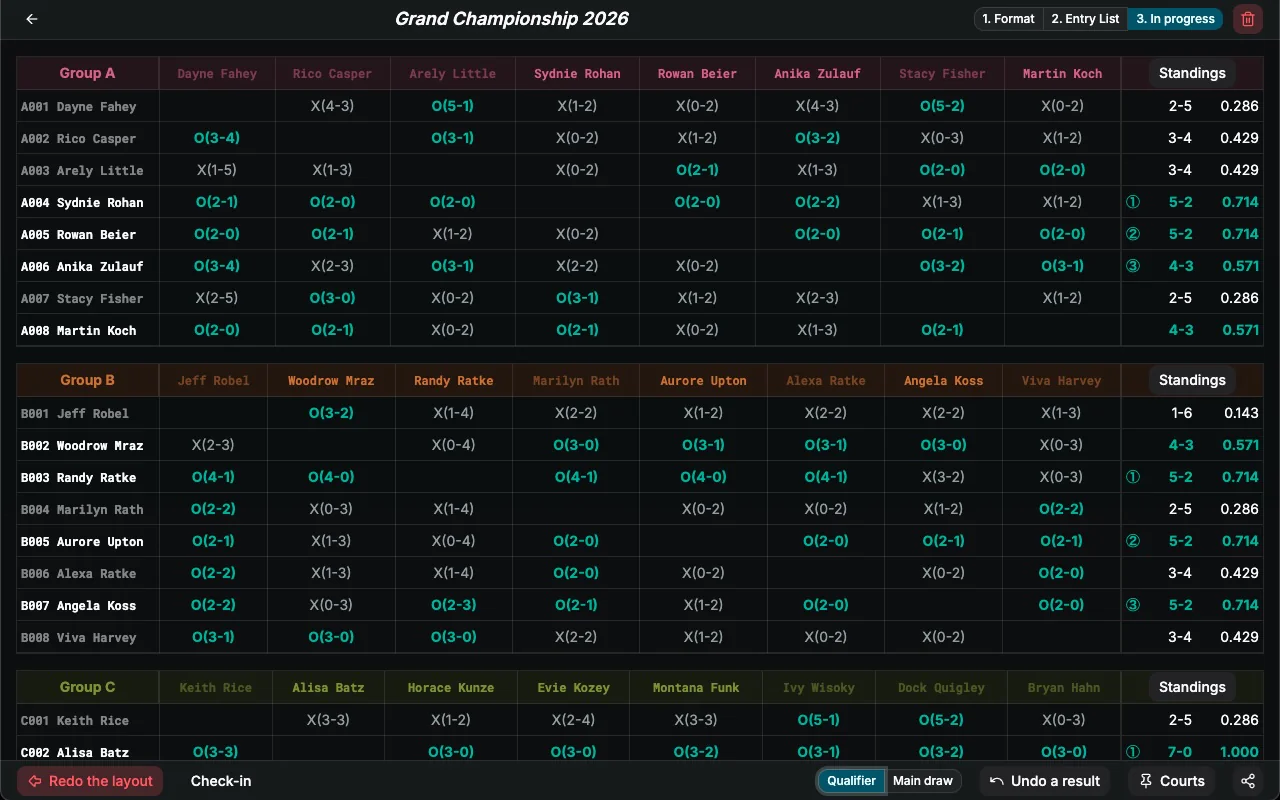
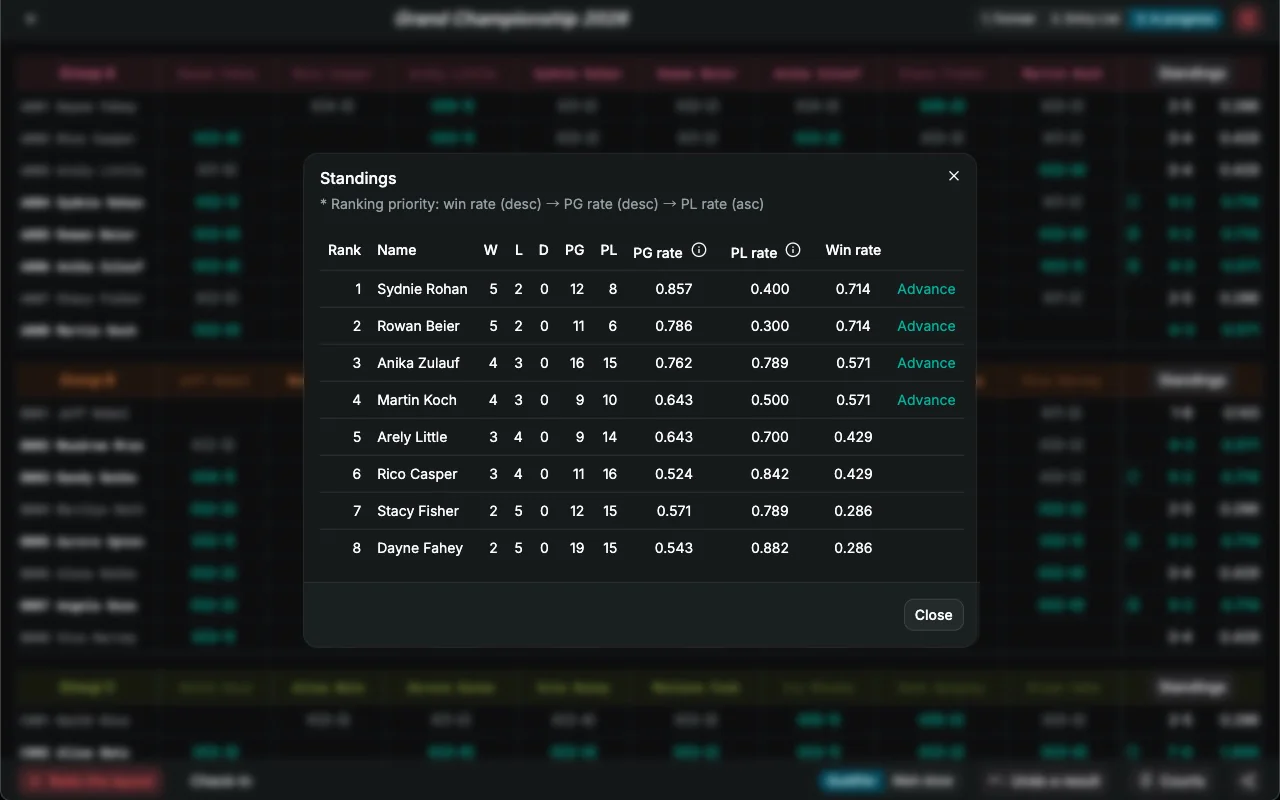
- Create tournament brackets or league tables sized to the number of entrants
- Place entrants into brackets or league tables manually or automatically
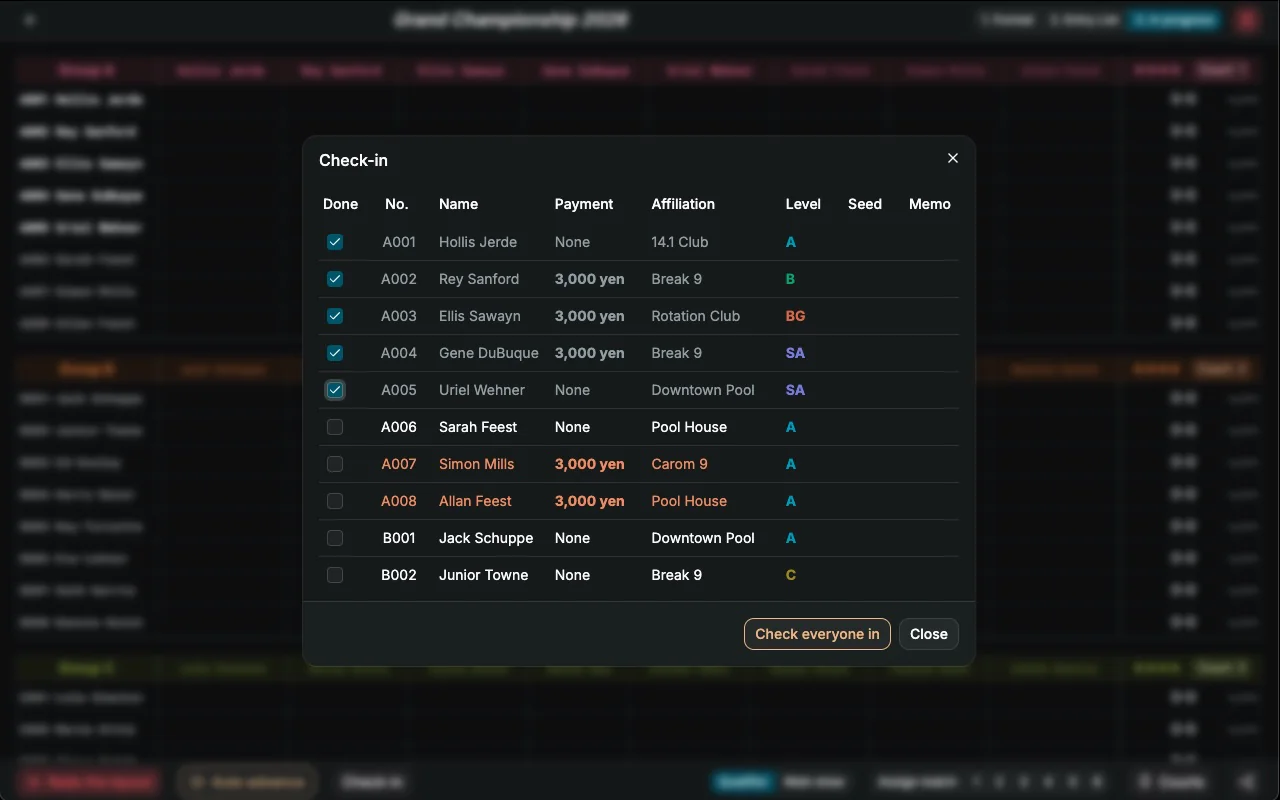
- Check-in management
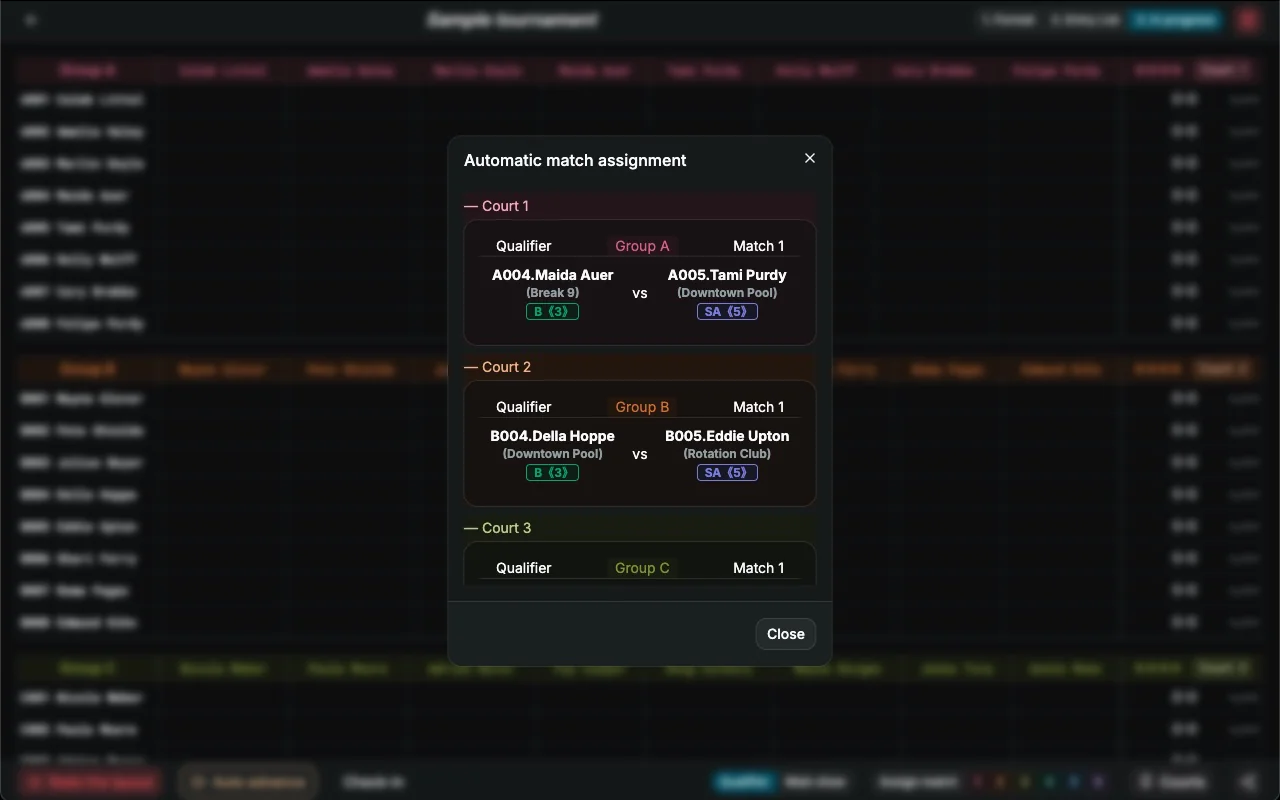
- Manage courts, per-court match assignment and overall progress in one place
- Entrants can follow the event on a companion web page
- Keep past tournaments, and start new ones by copying a previous format
- Learn the features and controls with a simulated tournament
- Light and dark mode
Specifications
- Formats
- Single elimination / Modified double elimination / Full double elimination / League (round robin)
- Preliminary round
- Optional
- Seeds (enter directly into the main draw)
- Up to 4
- Entrants without preliminaries
- Tournament: 3–128, League: 3–12
- Entrants with preliminaries
- Tournament preliminaries: 12–128, League preliminaries: 12–144
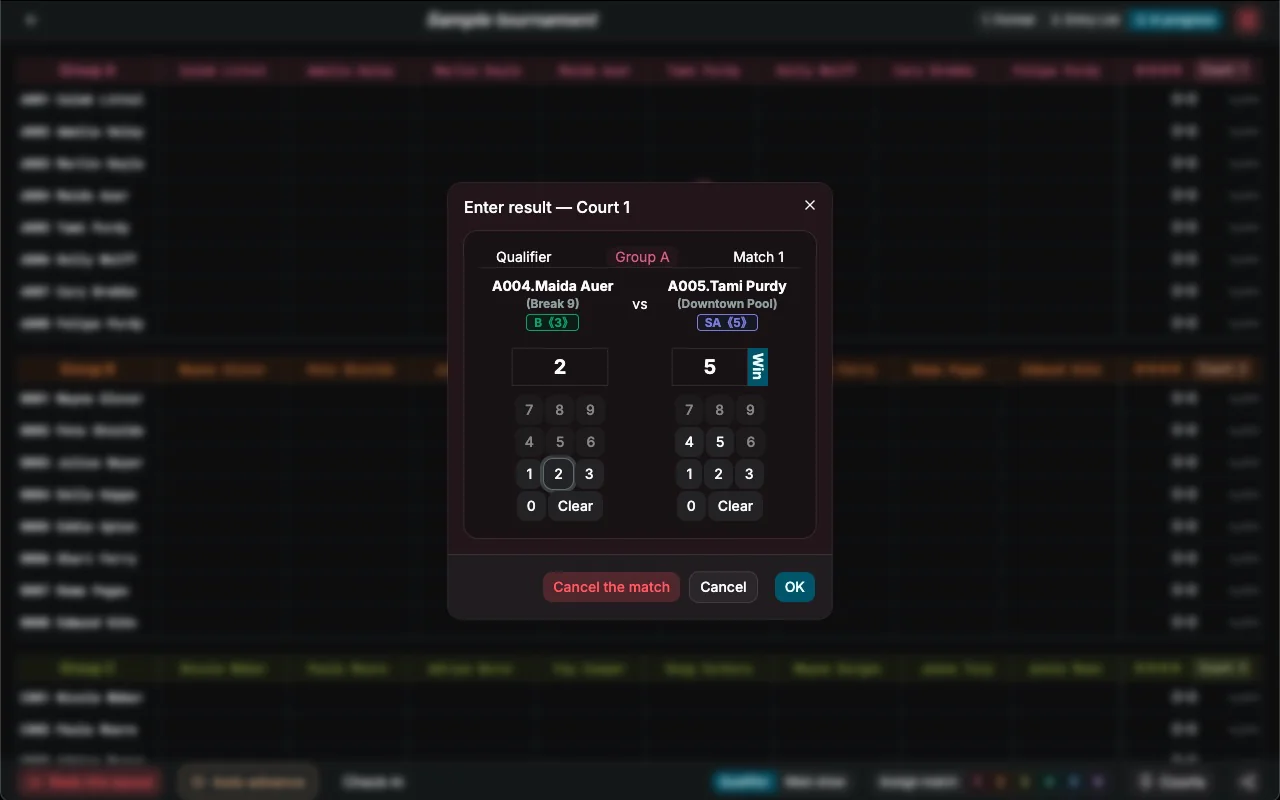
- Result entry
- Win/loss only / Scores / Handicap matches
* Entries of 20 or more require an in-app purchase.
Information
- Compatibility
- macOS 12.0 or later
Windows 10 / 11 (64-bit) - Languages
- English, Japanese
- Category
- Sports
- Price
- Free (in-app purchase)
FAQ
Is Versus Desktop free?
Yes, it is free to download and use. Creating a tournament with 20 or more entries requires a one-time in-app purchase.
Does it work without an internet connection?
Yes. Your data is stored on your computer, so you can run an event at a venue with no internet connection. An internet connection is only needed for the tournament progress app that lets participants follow the event on their smartphones, and when making the in-app purchase.
Do I need to create an account?
No. You can start using it right after installing it.
Which tournament formats are supported?
Single elimination, modified double elimination, full double elimination and league (round robin). A preliminary round is optional, and up to 4 seeds can enter directly into the main draw.
How many entrants can a tournament have?
Without preliminaries: 3–128 for a tournament and 3–12 for a league. With preliminaries: 12–128 when the preliminaries are a tournament, and 12–144 when they are a league.
How do I create the entry list?
Type the entrants in, or upload a CSV file. Web entry is not supported.
Does it run on Mac and Windows?
Both. On Mac it requires macOS 12.0 or later and is available on the Mac App Store. On Windows it requires Windows 10 or 11 (64-bit) and can be downloaded from this page.
Windows shows a warning when I install it.
Because Versus Desktop is a new app, Windows shows "Windows protected your PC" the first time you open it. Click "More info", then "Run anyway" to start the installation. The warning only appears once.
How many computers can I use one license on?
The version downloaded from this page (Windows and the Mac .dmg) can be used on up to 5 computers per license. A sixth computer requires a new license. To free up a slot, choose "Settings" > "Deactivate License on This Computer" from the menu on a computer you no longer use. The Mac App Store version is purchased with your Apple ID, so you can use "Restore purchase" on any Mac signed in with the same Apple ID.
How is it different from Versus Pocket?
Versus Pocket is a simple smartphone app that deliberately leaves out fine-grained settings. Versus Desktop is its full-featured edition for running a complete event on a computer, offline.
More from the lineup
CEDARBOOK systems, known for its tournament management apps, offers its latest lineup in three editions: Web, Desktop and Mobile. (The Web edition is available in Japan only.)
-
For quick use on your smartphone

Versus Pocket
Deliberately free of fine-grained settings, it sticks to being quick, easy and simple — the definitive tournament app for smartphones.